
Clocking In From the Truck
Clock in for the day or into a specific job, with a running timer, notes on the way out, and a reminder when you pull up to site.
Hours reconstructed from memory on Friday afternoon are not hours. They're a guess that costs you money in both directions.
How it works
- Clock in for the day, or clock in against a specific job when you want hours attributed to it.
- A live timer runs so everyone can see the clock is actually going.
- Clock out and add work notes while the job is still fresh.
- Review session history — total hours and entry counts, per person.
The two things that stop hours going missing
Arrival reminders. The app can notice when a phone pulls onto a job site and prompt: don't forget to clock in. Same on the way out. Owners are told when technicians arrive and leave by default — it's a switch in settings if you'd rather not be.
Auto clock-out. Set a threshold between 1 and 24 hours and anyone who forgets gets clocked out automatically, instead of accruing 40 hours over a weekend.
Where you'll find it
Web at /dashboard/time-clock, and a dedicated Clock tab in the mobile app for both owners and technicians.
Related: Payroll from logged hours · Working offline
Nothing to pay in beta. See pricing.
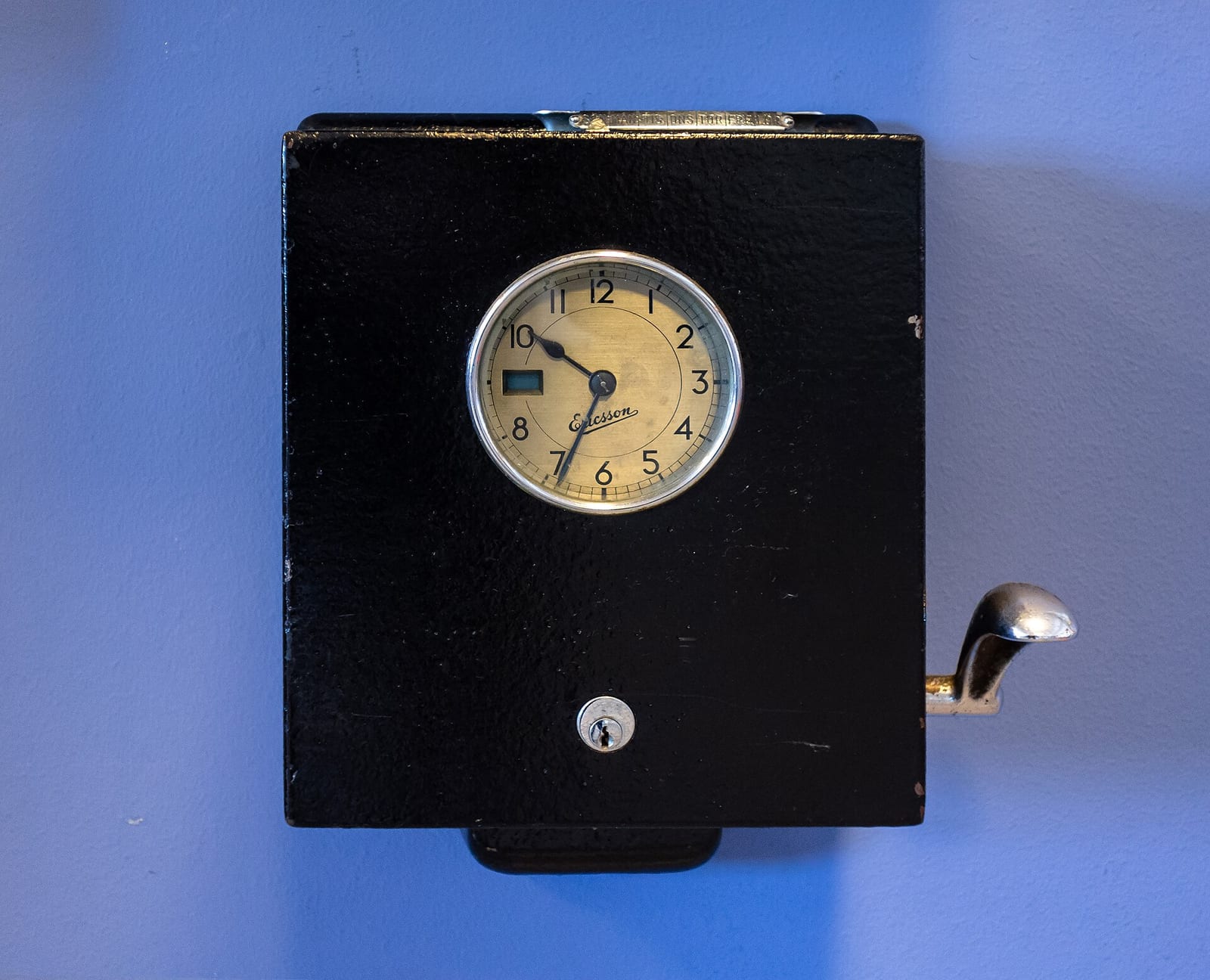
Header photo: LM Ericsson tidkontroll - old punch clock 5 by W.carter, CC0, via Wikimedia Commons.
